
This training only focuses on working with parameters alongside FME Flow. For more in-depth training on parameters in FME Form, you can take the FME Form Advanced module Create Flexible Workspaces with Parameters.
After completing this lesson, you’ll be able to:
In this lesson, you will:
After completing this lesson, you’ll be able to:
In this lesson, you will:
Parameters are controls that define how FME operates; for example, how a reader reads data, how a transformer transforms it, and how a writer writes it. Almost every component in FME has parameters of one type or another. You've already run into them while using FME.
This lesson will overview the different types of parameters available within FME and introduce user parameters. User parameters are the key to giving the end-user control over self-serve workspaces.
Parameters control FME translations and transformations. Some parameters are set solely in FME Workbench to control different translation components:
This training only focuses on working with parameters alongside FME Flow. For more in-depth training on parameters in FME Form, you can take the FME Form Advanced module Create Flexible Workspaces with Parameters.
The workspace's author determines the most available parameters, which you cannot alter once you publish them to FME Flow. FME Flow provides access to the following parameters:
In FME Flow Automations, there's also Automation Parameters and Manual Parameters. You can learn more about them in Automate Workflows with FME Flow.
Although workspace authors set most parameters, end users must be able to set some in certain cases, especially in self-serve workflows.
User parameters are methods for getting input into a workspace, enabling users to set values for their translation. You can present any parameter in FME to the user as a choice when running a workspace. When running the workspace in FME Workbench or FME Flow, the user chooses the value for each parameter, giving them greater control and customization over workspace readers, transformers, and writers.
For self-serve workflows, user parameters may control:
With FME Flow, the key to successful workspace authoring is flexibility. Workspaces need to be flexible so end-users can make choices without seeing the full complexity of the workspace or its underlying data. One way to accomplish this is by using user parameters.
As a workspace author, you must choose the appropriate user parameter based on the following questions:
You can choose from the following options:
| Parameter Type | Creates a Parameter to | |
|---|---|---|
| Attributes | Select Attributes | Choose names of feature type attributes, or items from a comma-delimited or space-delimited attribute list. Choices populate from a reference to the user parameter in the workspace. |
| Expose Attributes | Choose record attributes to expose for use in downstream components of the workspace. | |
| Choice | Choose one or more values, or select/deselect a checkbox. | |
| Color | Select a color value. | |
| Connection | Database Connection | Choose a database connection. |
| Web Connection | Choose a web connection. | |
| Datetime | Enter a date and time. For information about output formats, see Standard FME Date/Time Format. | |
| Encoding | Choose from a list of character encoding conventions supported by FME. | |
| File/Folder/URL | Choose the names and paths of existing files or folders, an output file or folder, or a URL. | |
| Message | Display a message at runtime. | |
| Number | Enter an integer or a floating-point number, which can be bounded or unbounded based on the specified configuration. | |
| Password | Enter a password. | |
| Spatial | Coordinate System | Choose a coordinate system. |
| Define Geometry | Enter a geometry as a set of spatial coordinates in GeoJSON. | |
| Select Geometry | Select geometry from a list of spatial features. | |
| Reprojection File | Choose a grid shift file for reprojecting data. | |
| Table | Enter data in a table. | |
| Text | Enter a text string. | |
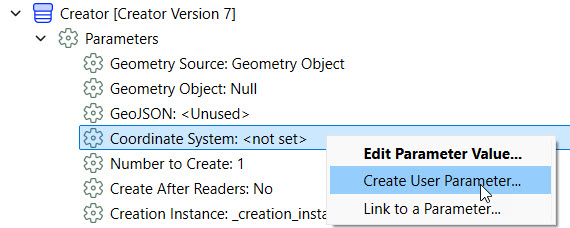
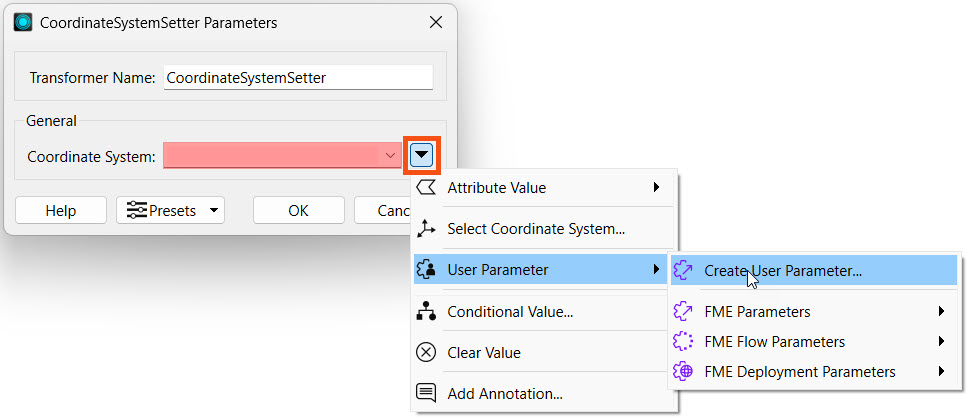
You can create user parameters in several ways, depending on how you author the workspace. The most common ways to create parameters are:
1) Directly from another parameter in the Navigator window, such as reader, writer, or transformer parameters
2) From within the reader, writer, or transformer settings
3) From within the Parameter Manager on FME Workbench, accessed by right-clicking User Parameters in the Navigator and choosing Manage User Parameters...
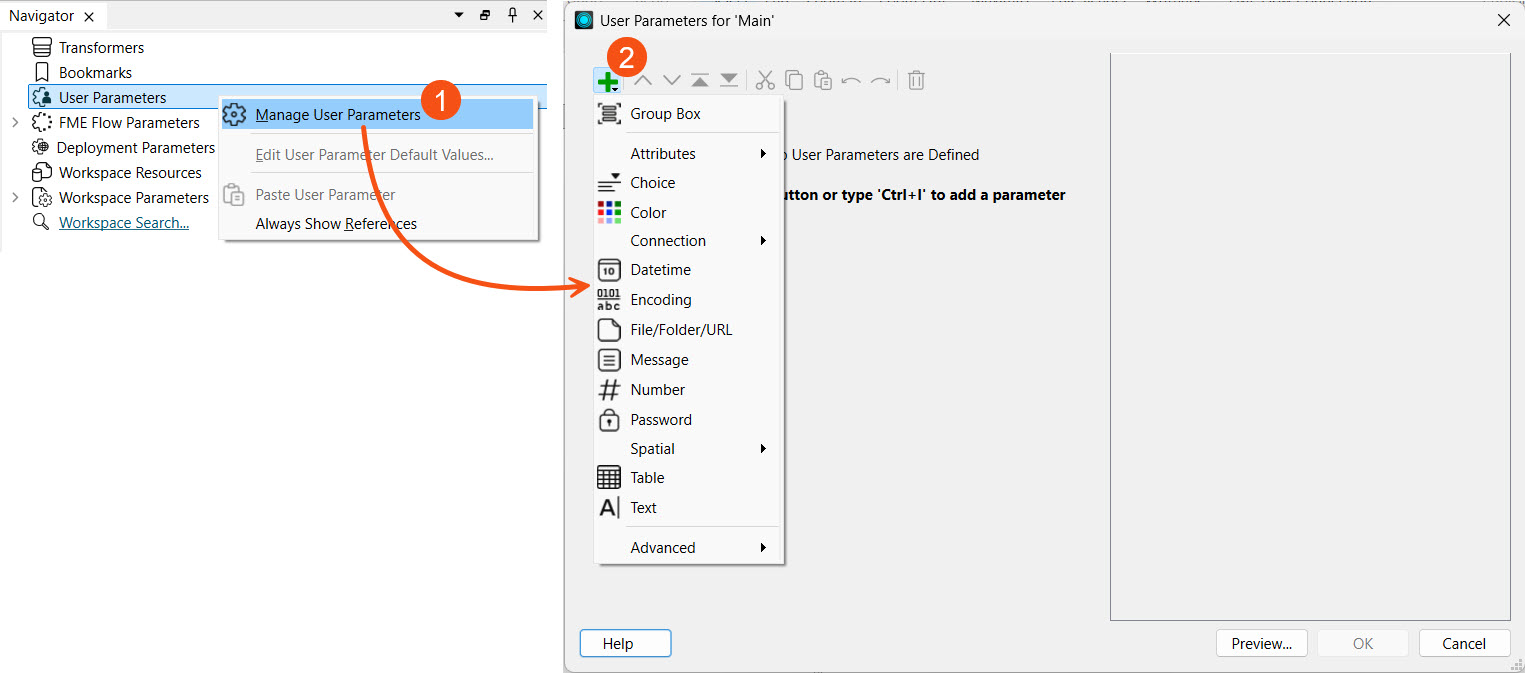
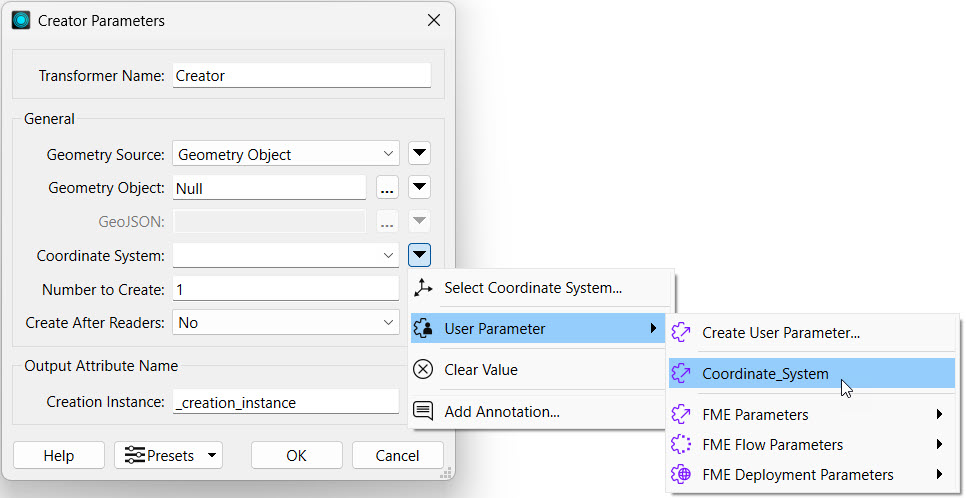
If you create a user parameter from the Parameter Manager, you must link it to the parameter value where you wish to control it.
You add, configure, reorder, and group parameters in the Parameter Manager.
The left-hand side of the Parameter Manager shows all user parameters, with options to add new ones (A), move them up and down in order (B), drag them to reorder (C), group multiple parameters together (D), copy and paste, and delete. The right-hand side displays the properties for the newly created or selected parameter (E).
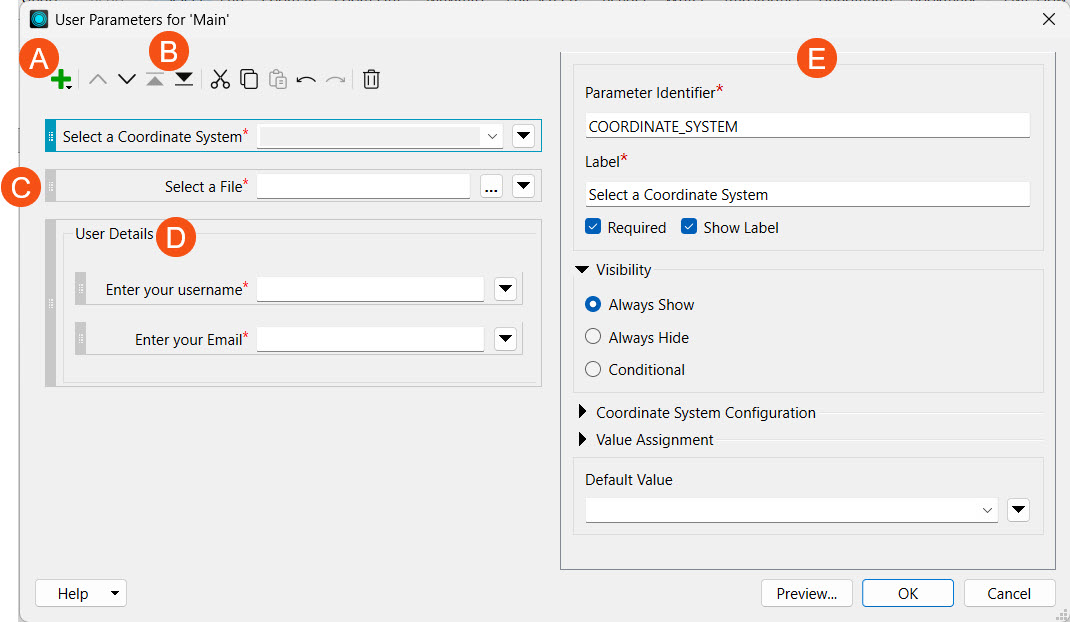
In the parameter properties, you configure the parameter by setting requirements, visibility settings, and optionally a default value. If a parameter is required, you must give it a value for the workspace to run, and FME disables the Run button if the value is empty.
You can control the visibility of individual user parameters in the Visibility section. In most scenarios, you will want your user parameters visible to end users so they can configure the parameter values to control how the workspace functions. End-user input is essential in self-serve workflows so they can control data layers, formatting, and other input parameters.
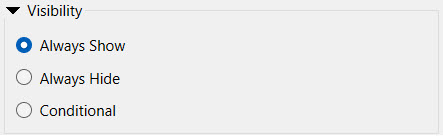
The Always Show option ensures the parameter is visible to you and other users on FME Flow when running the workspace.
On occasion, you may want to hide user parameters from end users running the workspace. If you set the parameter visibility to Always Hide, the parameter will supply the default value wherever the workspace links to it, and end users will not be able to see or edit the value. You may want to hide parameters to reuse a value multiple times in a workspace, such as a password or connection, without allowing the end user to change it.
The Conditional visibility option lets you control a parameter's visibility based on the values of previous parameters in the prompt. You may control visibility from a single if-else clause or choose a more complex compound condition.
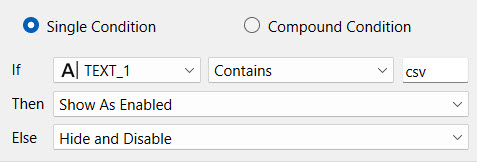
To learn more about conditional visibility of user parameters, check out the Using Conditional Parameters lesson in Create Data Integration Apps.
FME Workbench uses a lock symbol to denote hidden parameters. In the image below, the interface hides the Password parameter, while the other parameters remain visible or conditionally visible.
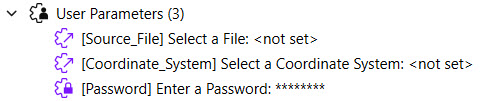
When running a workspace on FME Flow, you and other users will never see hidden parameters; they will use the default value if they're required. For the parameters above, the Password parameter isn't visible at all on FME Flow.
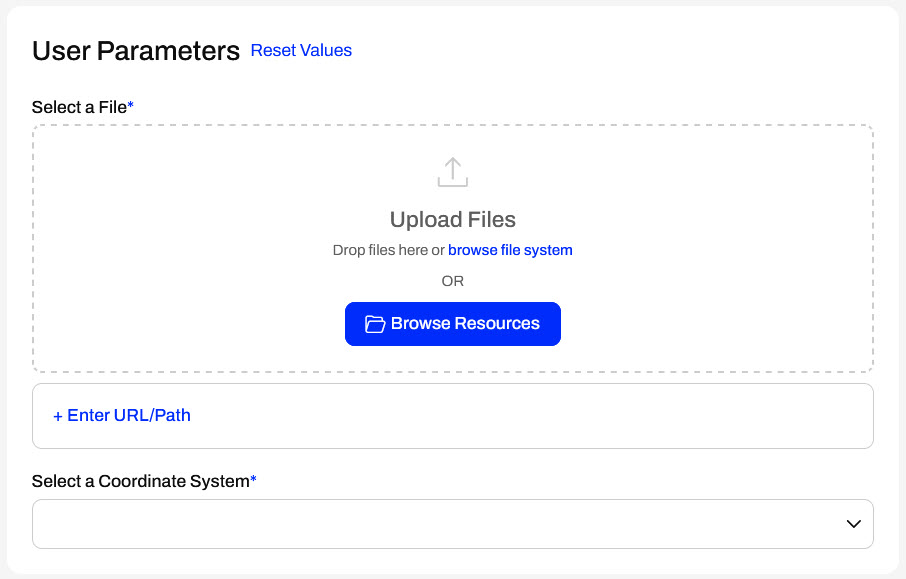
Visible user parameters are available everywhere you configure a workspace to run on FME Flow, from Automations to Apps to Streams, allowing you to customize each workspace run.

Jennifer, a GIS Specialist, is developing workspaces for other users to run on FME Flow. An essential part of her work is creating parameters that provide end users with different levels of flexibility and control for workflows. For the quiz, help Jennifer select the best options to implement user parameters into the workflows for each scenario.
Jennifer is creating a tool that lets users extract data for specific neighborhoods within a city. She intends to have the user choose the neighborhood, and the workspace will filter the data accordingly and deliver it in the user's chosen output format.
Parameters are controls that define how FME operates; for example, how a reader reads data, how a transformer transforms it, and how a writer writes it. Almost every component in FME has parameters of one type or another. You've already run into them while using FME.
This lesson will overview the different types of parameters available within FME and introduce user parameters. User parameters are the key to giving the end-user control over self-serve workspaces.
Parameters control FME translations and transformations. Some parameters are set solely in FME Workbench to control different translation components:
This training only focuses on working with parameters alongside FME Flow. For more in-depth training on parameters in FME Form, you can take the FME Form Advanced module Create Flexible Workspaces with Parameters.
The workspace's author determines the most available parameters, which you cannot alter once you publish them to FME Flow. FME Flow provides access to the following parameters:
In FME Flow Automations, there's also Automation Parameters and Manual Parameters. You can learn more about them in Automate Workflows with FME Flow.
Although workspace authors set most parameters, end users must be able to set some in certain cases, especially in self-serve workflows.
User parameters are methods for getting input into a workspace, enabling users to set values for their translation. You can present any parameter in FME to the user as a choice when running a workspace. When running the workspace in FME Workbench or FME Flow, the user chooses the value for each parameter, giving them greater control and customization over workspace readers, transformers, and writers.
For self-serve workflows, user parameters may control:
With FME Flow, the key to successful workspace authoring is flexibility. Workspaces need to be flexible so end-users can make choices without seeing the full complexity of the workspace or its underlying data. One way to accomplish this is by using user parameters.
As a workspace author, you must choose the appropriate user parameter based on the following questions:
You can choose from the following options:
| Parameter Type | Creates a Parameter to | |
|---|---|---|
| Attributes | Select Attributes | Choose names of feature type attributes, or items from a comma-delimited or space-delimited attribute list. Choices populate from a reference to the user parameter in the workspace. |
| Expose Attributes | Choose record attributes to expose for use in downstream components of the workspace. | |
| Choice | Choose one or more values, or select/deselect a checkbox. | |
| Color | Select a color value. | |
| Connection | Database Connection | Choose a database connection. |
| Web Connection | Choose a web connection. | |
| Datetime | Enter a date and time. For information about output formats, see Standard FME Date/Time Format. | |
| Encoding | Choose from a list of character encoding conventions supported by FME. | |
| File/Folder/URL | Choose the names and paths of existing files or folders, an output file or folder, or a URL. | |
| Message | Display a message at runtime. | |
| Number | Enter an integer or a floating-point number, which can be bounded or unbounded based on the specified configuration. | |
| Password | Enter a password. | |
| Spatial | Coordinate System | Choose a coordinate system. |
| Define Geometry | Enter a geometry as a set of spatial coordinates in GeoJSON. | |
| Select Geometry | Select geometry from a list of spatial features. | |
| Reprojection File | Choose a grid shift file for reprojecting data. | |
| Table | Enter data in a table. | |
| Text | Enter a text string. | |
You can create user parameters in several ways, depending on how you author the workspace. The most common ways to create parameters are:
1) Directly from another parameter in the Navigator window, such as reader, writer, or transformer parameters
2) From within the reader, writer, or transformer settings
3) From within the Parameter Manager on FME Workbench, accessed by right-clicking User Parameters in the Navigator and choosing Manage User Parameters...
If you create a user parameter from the Parameter Manager, you must link it to the parameter value where you wish to control it.
You add, configure, reorder, and group parameters in the Parameter Manager.
The left-hand side of the Parameter Manager shows all user parameters, with options to add new ones (A), move them up and down in order (B), drag them to reorder (C), group multiple parameters together (D), copy and paste, and delete. The right-hand side displays the properties for the newly created or selected parameter (E).
In the parameter properties, you configure the parameter by setting requirements, visibility settings, and optionally a default value. If a parameter is required, you must give it a value for the workspace to run, and FME disables the Run button if the value is empty.
You can control the visibility of individual user parameters in the Visibility section. In most scenarios, you will want your user parameters visible to end users so they can configure the parameter values to control how the workspace functions. End-user input is essential in self-serve workflows so they can control data layers, formatting, and other input parameters.
The Always Show option ensures the parameter is visible to you and other users on FME Flow when running the workspace.
On occasion, you may want to hide user parameters from end users running the workspace. If you set the parameter visibility to Always Hide, the parameter will supply the default value wherever the workspace links to it, and end users will not be able to see or edit the value. You may want to hide parameters to reuse a value multiple times in a workspace, such as a password or connection, without allowing the end user to change it.
The Conditional visibility option lets you control a parameter's visibility based on the values of previous parameters in the prompt. You may control visibility from a single if-else clause or choose a more complex compound condition.
To learn more about conditional visibility of user parameters, check out the Using Conditional Parameters lesson in Create Data Integration Apps.
FME Workbench uses a lock symbol to denote hidden parameters. In the image below, the interface hides the Password parameter, while the other parameters remain visible or conditionally visible.
When running a workspace on FME Flow, you and other users will never see hidden parameters; they will use the default value if they're required. For the parameters above, the Password parameter isn't visible at all on FME Flow.
Visible user parameters are available everywhere you configure a workspace to run on FME Flow, from Automations to Apps to Streams, allowing you to customize each workspace run.
Jennifer, a GIS Specialist, is developing workspaces for other users to run on FME Flow. An essential part of her work is creating parameters that provide end users with different levels of flexibility and control for workflows. For the quiz, help Jennifer select the best options to implement user parameters into the workflows for each scenario.
Jennifer is creating a tool that lets users extract data for specific neighborhoods within a city. She intends to have the user choose the neighborhood, and the workspace will filter the data accordingly and deliver it in the user's chosen output format.
Jennifer is building a workflow for her organization's planning team to export infrastructure project data from one of two PostgreSQL databases. She has created two database connections—one for the live production environment and one for the development testing copy. Jennifer wants users to enter the project ID number and select which database to query for the data.
Jennifer is building a workflow for her organization's planning team to export infrastructure project data from one of two PostgreSQL databases. She has created two database connections—one for the live production environment and one for the development testing copy. Jennifer wants users to enter the project ID number and select which database to query for the data.
Jennifer is creating a tool for an environmental analysis team that frequently works with large aerial imagery (e.g., orthophotos). They want an FME workspace that crops a section of the imagery based on the input geometry and highlights specific features or regions using a custom color overlay. Jennifer has built the transformers for the workspace and is now working on the parameters to take user input.
Jennifer is creating a tool for an environmental analysis team that frequently works with large aerial imagery (e.g., orthophotos). They want an FME workspace that crops a section of the imagery based on the input geometry and highlights specific features or regions using a custom color overlay. Jennifer has built the transformers for the workspace and is now working on the parameters to take user input.